Getting around
The 3D view
See the assembled design in 3D, explode it, or lay every part flat as it will be cut.
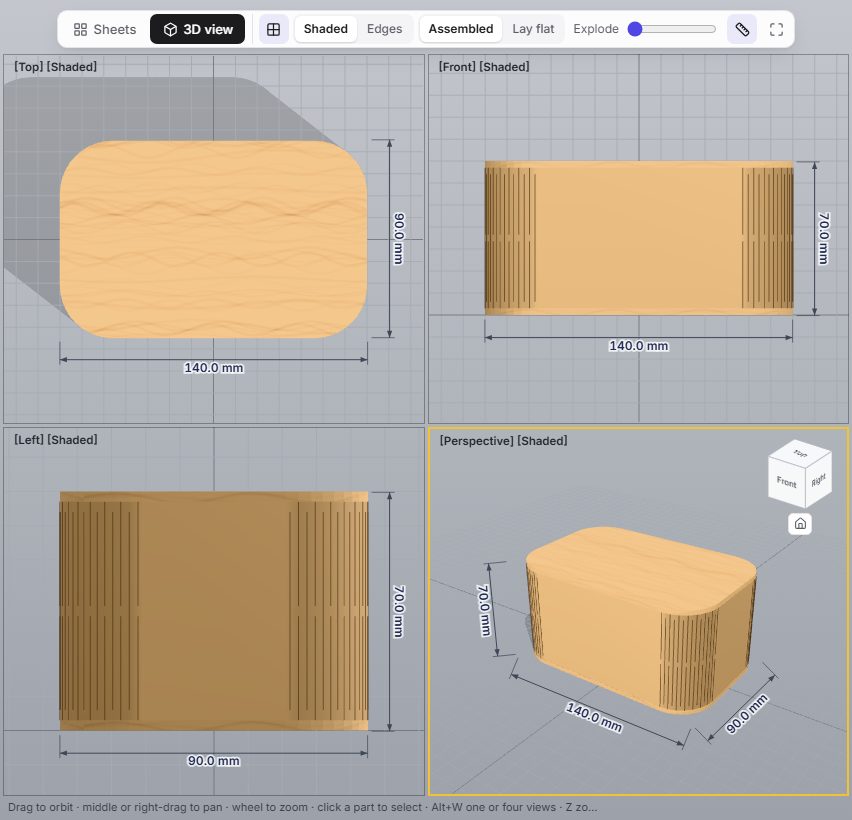
- Switch between Sheets and 3D view at the top of the stage; the 3D toolbar sits beside the switch. The same 3D workspace is in every editor and in the Windows app.
- Like a 3D modelling program, it shows four views: Top, Front, Left and Perspective. The active view has a yellow frame. The four-views button, Alt+W or a double-click on a view's name shows one view large and back again; T, F, L and P pick a view.
- In the Perspective view, drag to orbit; in every view, middle- or right-drag to pan and scroll to zoom. The view cube turns the model to a set view and its home button goes back to the start. Z frames the model in the active view, Shift+Z or the zoom-extents button in every view.
- Shaded or Edges (F4) chooses how the parts are drawn; Edges outlines every part. Click a part to select it, Esc to clear.
- A selected part shows the scale gizmo, as in 3ds Max: an axis for each direction (red X, green Y up, blue Z to the front), a strip between each two axes and a triangle in the middle. Drag an axis to size the design along it alone (the width without the depth), a strip to size both its axes, the middle (up or down) to size everything. Hold Shift to keep the proportions whatever you drag. The design grows on screen as you drag and is rebuilt once when you let go, so dragging stays smooth; the pointer shows the new sizes, Esc cancels, and each drag is one undo step. Where a part can move or turn, arrows and rings do that (Shift snaps to 5 mm or 15°); Move, Turn and Scale (W, E, R) pick which handles show.
- What the handles change: the Hinge Box's width, depth (or diameter) and height; a Boxes design's own sizes, and the phone stand's lean with its ring; Letters' text size and box depth; other designs are sized as a whole, but never through the sheet's thickness. Click a text, number, picture, motif, tick or label on the product to select just that item: the gizmo sits on it and sizes it alone, keeping its proportions, and the item's own size setting changes (a scored item shows as a see-through fill so it can be clicked). This works in every generator, on the website and in the Windows app. In Parametric they scale and turn the source model; in Studio's 3D assembly they move a part and turn it in quarter turns. The handles hide while the model is exploded or laid flat.
- The overall width, depth and height are drawn on every view, in your units; the ruler button hides them. A top view shows width and depth, a front view width and height. They are hidden while the model is exploded.
- Explode (Lift lid for a letter box) pulls the parts apart so you can see how they go together.
- Assembled shows the finished piece; Lay flat shows every part as a slab where it sits on the sheet, with the hinge cuts drawn on top.
- The material look follows your material preset: plywood, MDF, card or clear acrylic.
- The camera button under the view cube saves a listing photo: a PNG of the model at a chosen angle, background and size.