Getting around
Layers and export
Each kind of cut has its own coloured layer, so your laser software can give it its own speed and power.
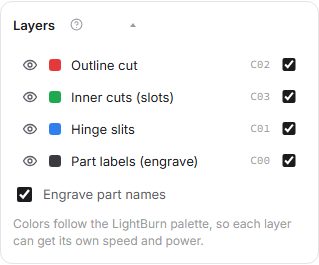
- Outline cut (red, LightBurn C02): the outer edge of every part.
- Inner cuts (green, C03): slots and holes inside parts.
- Hinge slits (blue, C01): the living hinge.
- Part labels (black, C00): engraved names, so you know which part is which.
Layers are written in cut order: inner cuts first, then the hinge, then the outline, so parts do not move before they are finished.
Switches
- The eye shows or hides a layer on screen.
- The tick box includes or leaves out a layer in the export.
- Engrave part names adds the labels layer.
Export
- Export SVG saves every sheet in one file, sized in millimetres.
- More… (Ctrl+Shift+E) opens the export window: pick your machine and it checks every sheet fits its bed, then save SVG, DXF, a PDF with a page per sheet, or a LightBurn project. Sheets can go in one file or one file each (a ZIP), mirrored for the back of clear acrylic, with hairline lines for Epilog, Trotec and Universal drivers, and DXF in inches. Laser power and speed are never set: use your own tested settings.
- Parametric exports every sheet as a ZIP or the current sheet as one SVG, and prints an assembly guide.
Clean files for your laser
- Every part outline is a closed path, so your laser software can fill, offset and order it.
- Where two parts share an edge (parts packed with no spacing, a slot along an edge), the line is cut once, not twice: a second pass would scorch the edge and widen the cut. The export says how much line it saved. In the export window, Cut shared lines once turns this off if you want every part whole.
- Sizes are true: the SVG is in millimetres (width, height and view box), a DXF says millimetres ($INSUNITS 4) or inches when you choose, a PDF is drawn at actual size (100 mm is 283.46 pt) and a LightBurn project is in millimetres. A 100 mm square opens as exactly 100 mm in LightBurn, Inkscape and Illustrator.
- In Illustrator, open the SVG rather than placing it; in Inkscape, keep Scale at the default (the file's own units). If a program asks for the DXF's units, pick millimetres.