QR Code
QR Code generator
The QR Code generator makes scannable plates: keychains, table signs, coasters, Wi-Fi cards, business cards and paint stencils. It encodes web addresses, text, Wi-Fi logins, contact cards, emails, text messages and phone numbers in the standard formats phones understand.
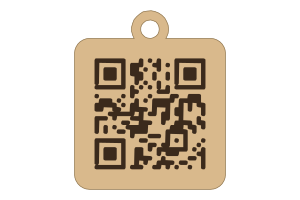
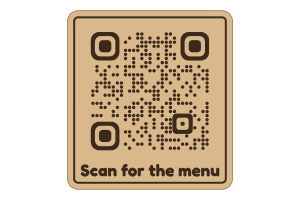
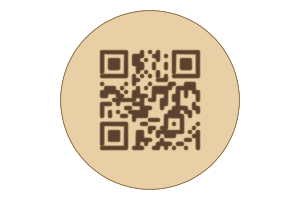
Choose how it is made: engraved; cut through a light top plate and glued on a dark backplate; or cut as a stencil whose holes are joined row by row with thin bridges between the rows, so no part of the stencil falls out.
Every design is checked: module size for the output, the clear space around the code, the size of a centre logo against the error correction, and stencil bridges.
Content
What the code holds: a web address, text, Wi-Fi login, contact card, email, text message or phone number.
Code
Size, error correction and the look of the modules.
Output
How the code is made: engraved, cut through a top plate over a contrasting backplate, or cut as a paint stencil.
Plate
The plate around the code: shape, border, corners and an optional frame.
Label
Text next to the code, such as “Scan for the menu” or a name.
Centre logo
A small picture or initials in the middle of the code; error correction rebuilds the modules it covers.
Keyring hole
A hole to hang the plate on a keyring or hook.
Presets
- Keychain: 30 mm engraved tag with a keyring tab.
- Table sign: 90 mm menu code with a frame and “Scan for the menu”.
- Coaster: 100 mm round coaster, cut out over a dark backplate.
- Wi-Fi card: Guests scan to join; Wi-Fi logo and network name.
- Business card: Contact card: scan to save the details.
- Paint stencil: 120 mm stencil with bridges, to spray a code on a wall or crate.
- Scan me sign: Viewfinder corners and a SCAN ME bar.
- Table menu: Scan for the menu, in a bar above the code.
Material, layers and sheet
Set your material's thickness and kerf first: the kerf is applied once to every outline and hole. Engraving is filled on its own layer, which the SVG puts first so it runs before the cuts.
Options
Content
- ContentWeb address, Text, Wi-Fi, Contact, Email, Text message, Phone call
- The kind of content; phones offer the matching action (open the page, join the network, save the contact).
- Web addresstext
- The page the code opens; https:// is added when you leave it out.
- Texttext
- Plain text shown on the phone when the code is scanned.
- Network nametext
- The Wi-Fi network name (SSID), exactly as it appears on a phone.
- Passwordtext
- The Wi-Fi password; anyone who scans the code can read it.
- SecurityWPA, WEP, Open
- The network's security type; WPA covers WPA2 and WPA3.
- Hidden networkon or off
- Turn on when the network does not broadcast its name.
- First nametext
- Given name on the contact card.
- Last nametext
- Family name on the contact card.
- Companytext
- Company or organisation.
- Job titletext
- Role or job title.
- Phonetext
- Phone number, with the country code for numbers used abroad.
- Emailtext
- Email address on the contact card.
- Websitetext
- Website on the contact card.
- Send totext
- The address the email goes to.
- Subjecttext
- Subject line filled in for the sender.
- Email texttext
- The start of the email; the sender can change it before sending.
- Numbertext
- The phone number the text message goes to.
- Messagetext
- The message filled in for the sender.
- Number to calltext
- The phone number the code dials, with the country code if needed.
Code
- Module styleSquare, Rounded, Dots, Connected
- Square modules scan best; rounded, dots and connected look softer and still scan when the modules are large enough.
- Code size10 to 600 mm · step 1 mm
- Width of the code itself, without the clear space around it.
- Error correctionL, M, Q, H
- How much of the code can be damaged or covered and still scan; higher levels need more modules, and a centre logo needs Q or H.
- Quiet zone0 to 8 · step 1
- Clear space around the code, in modules; scanners need about two.
- Dot size (%)50 to 100 · step 1
- Dot diameter as a share of a module; smaller dots look lighter but scan less well.
- Invert (light code)on or off
- Engraves the background instead of the modules, for materials that engrave lighter than they are (dark acrylic, anodised aluminium).
Output
- OutputEngrave, Cut out, Stencil
- Engrave marks the modules; Cut out makes two plates (the light top one is cut through and glued on a dark backplate); Stencil cuts holes to paint through, with bridges so nothing falls out.
- Bridges (%)5 to 45 · step 1
- Strip of material left between rows of the stencil, as a share of a module; wider bridges are sturdier but leave lines in the paint.
Plate
- Plate shapeRectangle, Circle
- A rectangle around the code and label, or a circle (coasters, badges).
- Border0 to 60 mm · step 0.5 mm
- Plate border outside the quiet zone and label.
- Corner radius0 to 50 mm · step 0.5 mm
- Rounds the plate's corners.
- Frameon or off
- A thin line around the plate, in its border.
- Frame width0.3 to 5 mm · step 0.1 mm
- Width of the frame line.
- Frame styleFull line, Corners
- A line all the way round, or only the four corners, like a scanner's viewfinder.
Label
- Labeltext
- Text below, above or beside the code; each line is centred (left-aligned beside it).
- PositionBelow, Above, Beside
- Where the label sits.
- Fontany Letters font
- Typeface of the label and a text logo (the same fonts as Letters).
- Text height2 to 40 mm · step 0.5 mm
- Cap height of the label.
- Label stylePlain, Bar
- Plain engraved text, or a solid engraved bar with the text left bare, like a “Scan me” banner.
Centre logo
- LogoNone, Heart, Star, Wi-Fi, Letters
- No logo, a heart, a star, the Wi-Fi sign, or up to four letters.
- Logo size (%)5 to 40 · step 1
- Width of the cleared square as a share of the code; keep it small at level M.
- Letterstext
- Initials or a short word in the middle of the code.
Keyring hole
- HoleNone, Tab on top, Corner
- No hole, a rounded tab on top, or a hole in the top-left corner.
- Hole diameter2 to 12 mm · step 0.5 mm
- Diameter of the hole; 4 to 5 mm fits a split ring.